Every pixel,
right where you want it.
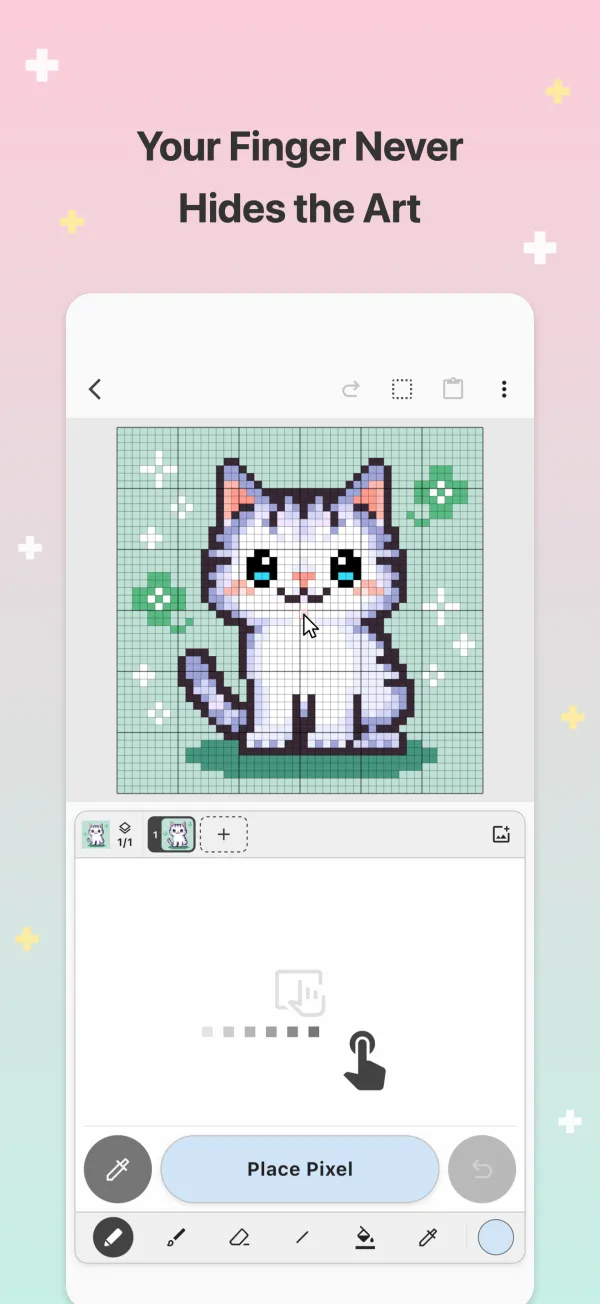
Picotap is a pixel art app made for touch. You steer the cursor from a swipe area below the canvas, so your finger never covers your art — from single-pixel details to full animations.



Free for iPhone, iPad, Android & Mac
Swipe inside the swipe area to move the cursor. Tap it to place a pixel.
Your finger stays
out of the way.
Instead of touching the canvas, you move a cursor from the swipe area below it, just like a laptop trackpad. That is how single-pixel work becomes comfortable on a phone.
-
Trackpad-style cursor
Move fast to travel far, slow down to step one pixel at a time. The cursor stops right where you aim.
-
Tap to place
Tap the swipe area or press Place Pixel to color the square under the cursor. The buttons sit within reach of your thumb and answer with a light tap.
-
Pinch to zoom
Pinch the canvas to zoom in and out. Tap the canvas to jump the cursor nearby, then fine-tune from the swipe area.
-
Move it your way
Prefer something else? Switch the cursor to One Cell at a Time or the D-Pad.
Bring your
pixel art to life.
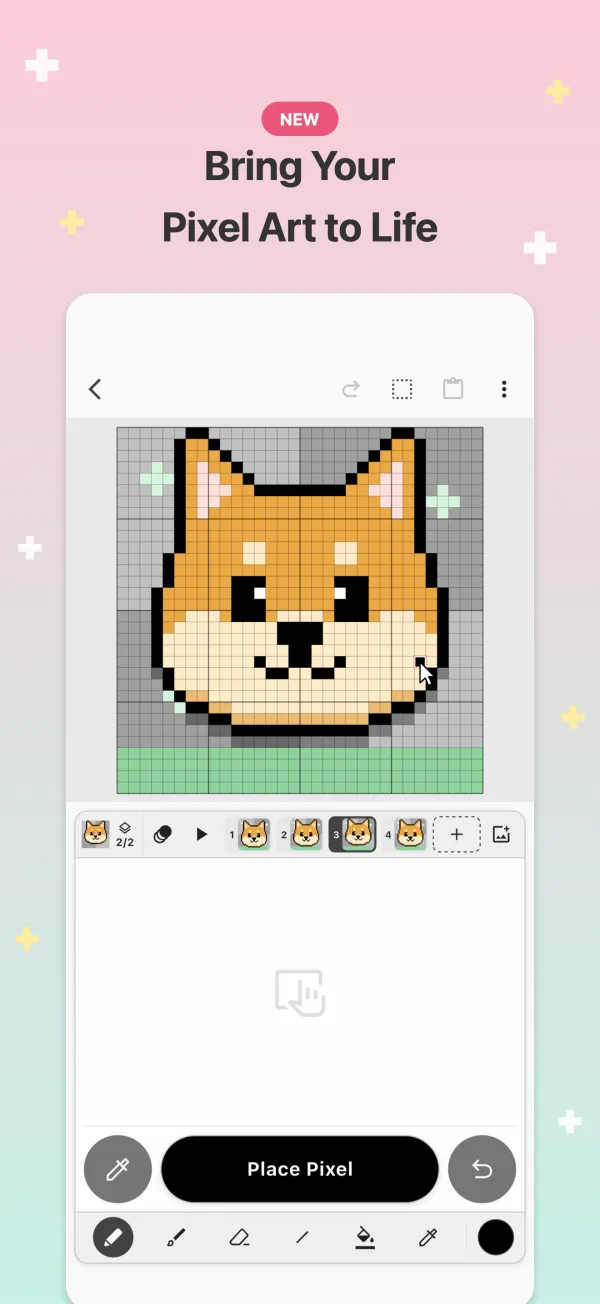
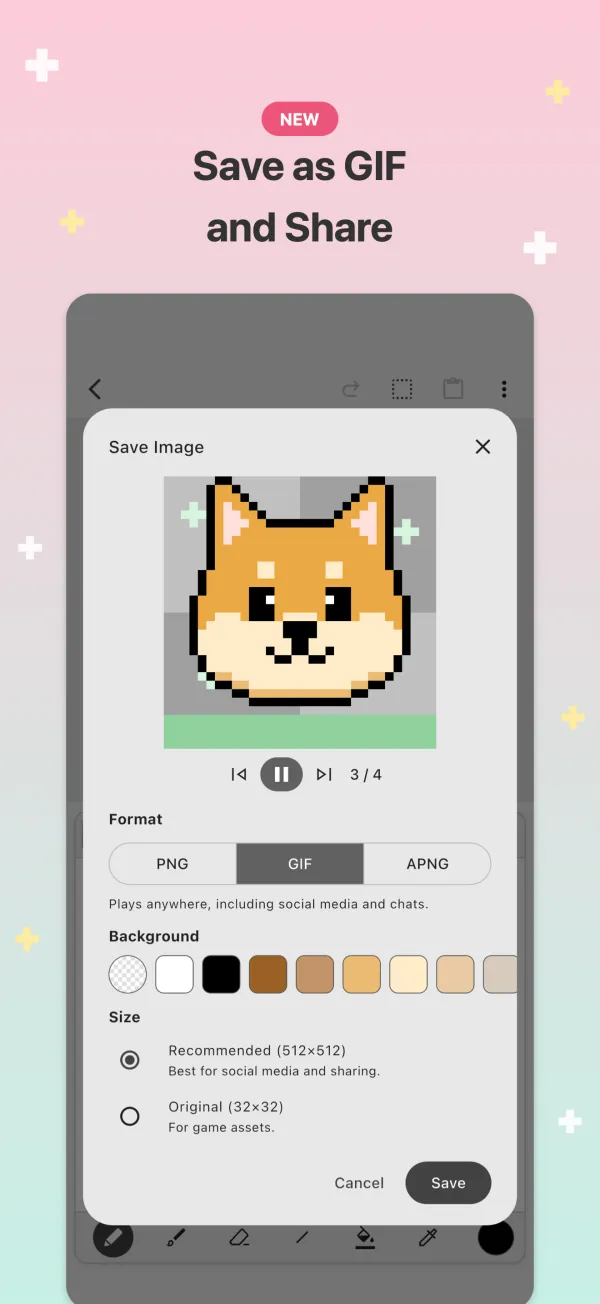
Make animations of up to 64 frames, flipbook style. Play them back on the spot, then save them as GIF or APNG.
-
Onion Skin
The frames before and after show through faintly, so every movement lines up.
-
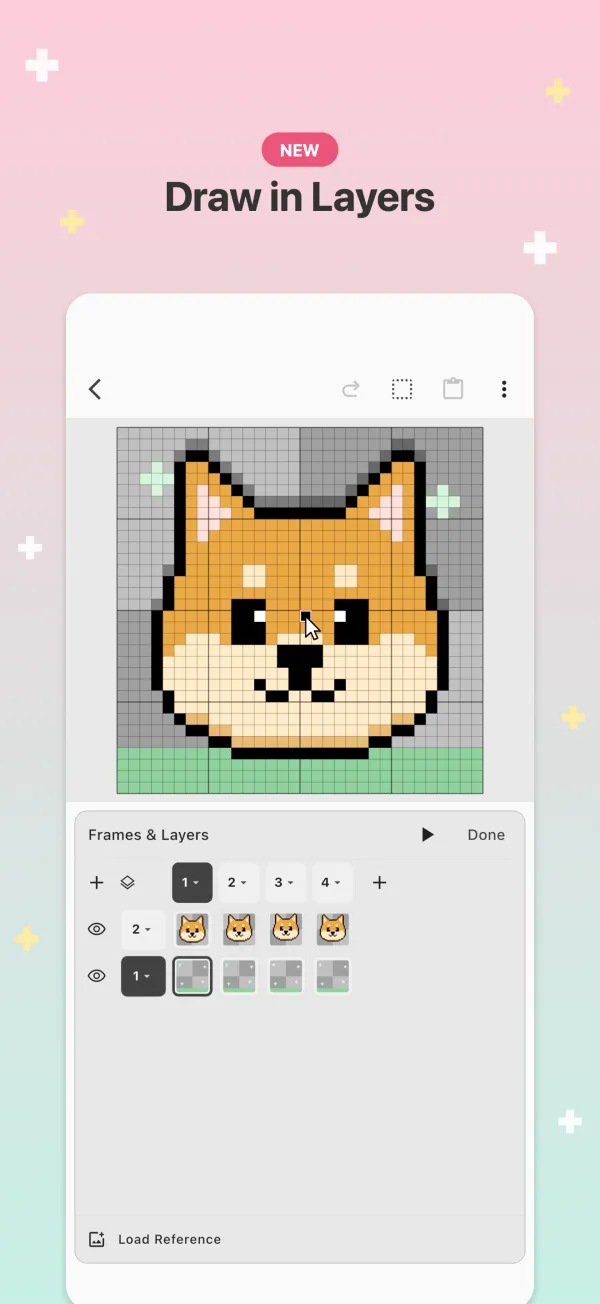
Up to 8 layers
Stack layers, hide them, and adjust their opacity.
-
Save as GIF or APNG
Share to social media or use in your game. Choose a transparent, white, black, or palette-color background.
From your first sprite
to game-ready assets.
Easy to start, with the tools you will grow into.
-
Shapes
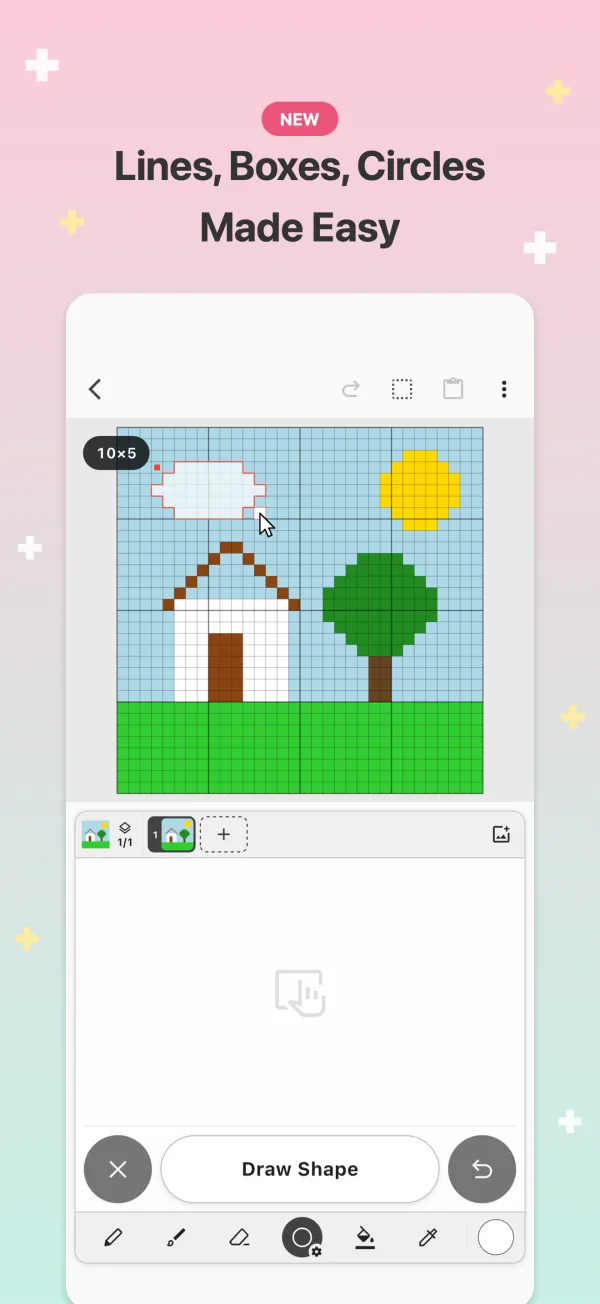
Lines, rectangles, and circles. Outlined or filled, from a corner or from the center.
-
Selection
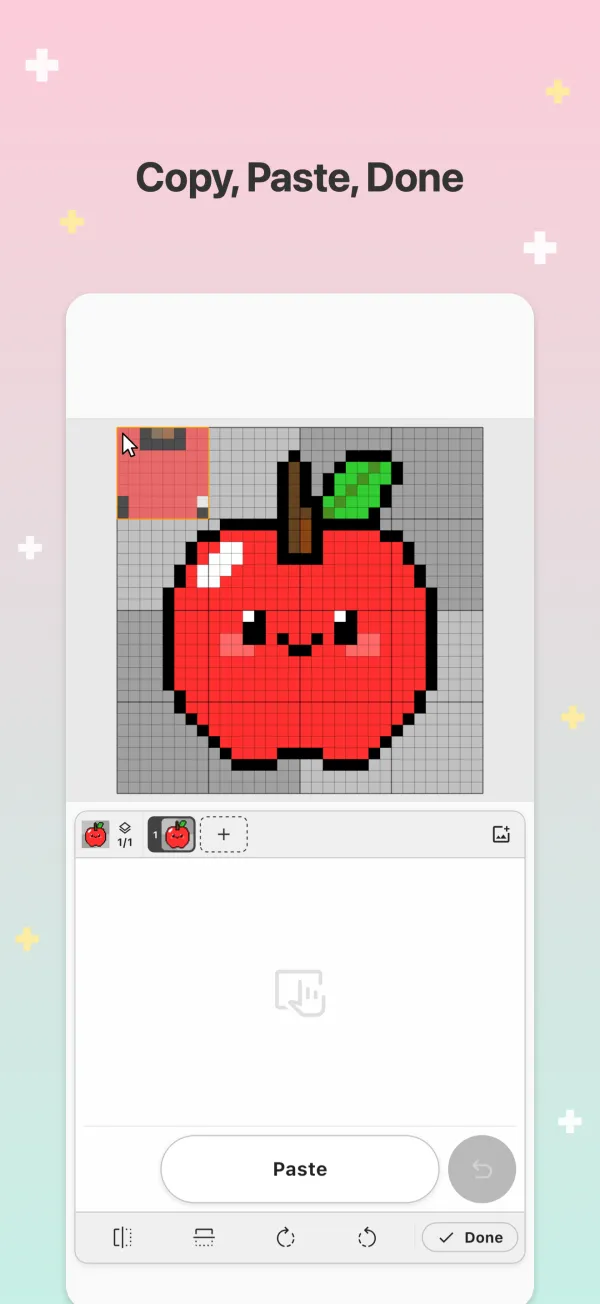
Move, copy, cut, flip, and rotate parts of your art.
-
Reference images
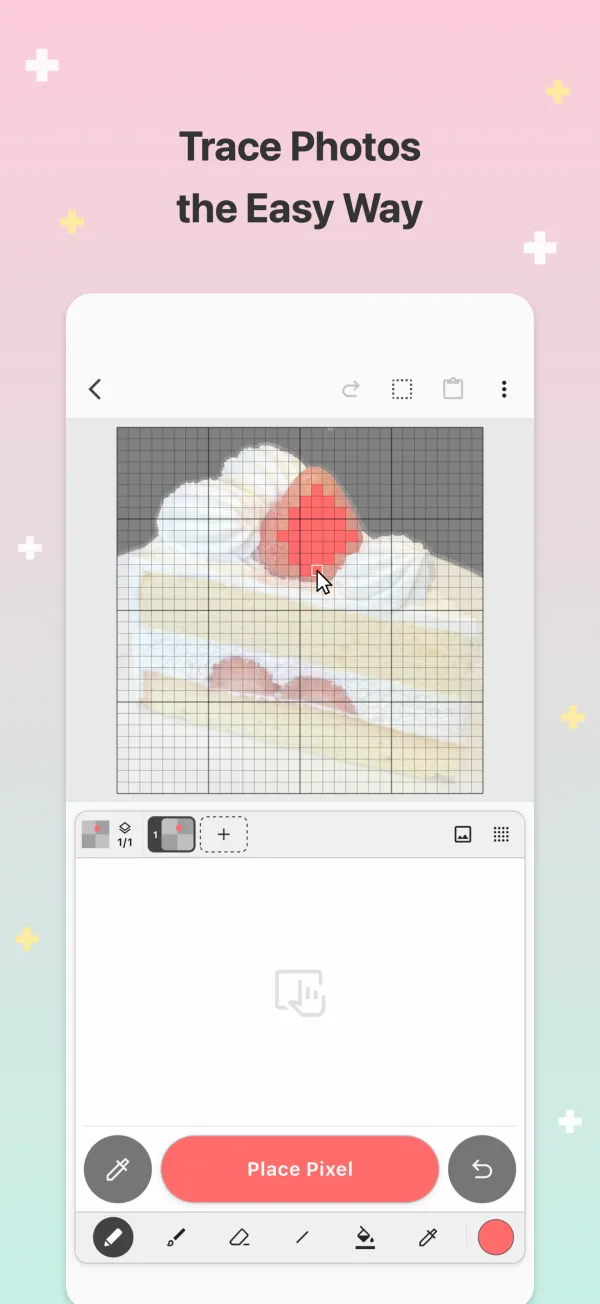
Import photos or drawings, line them up with a pinch, and trace.
-
Palettes
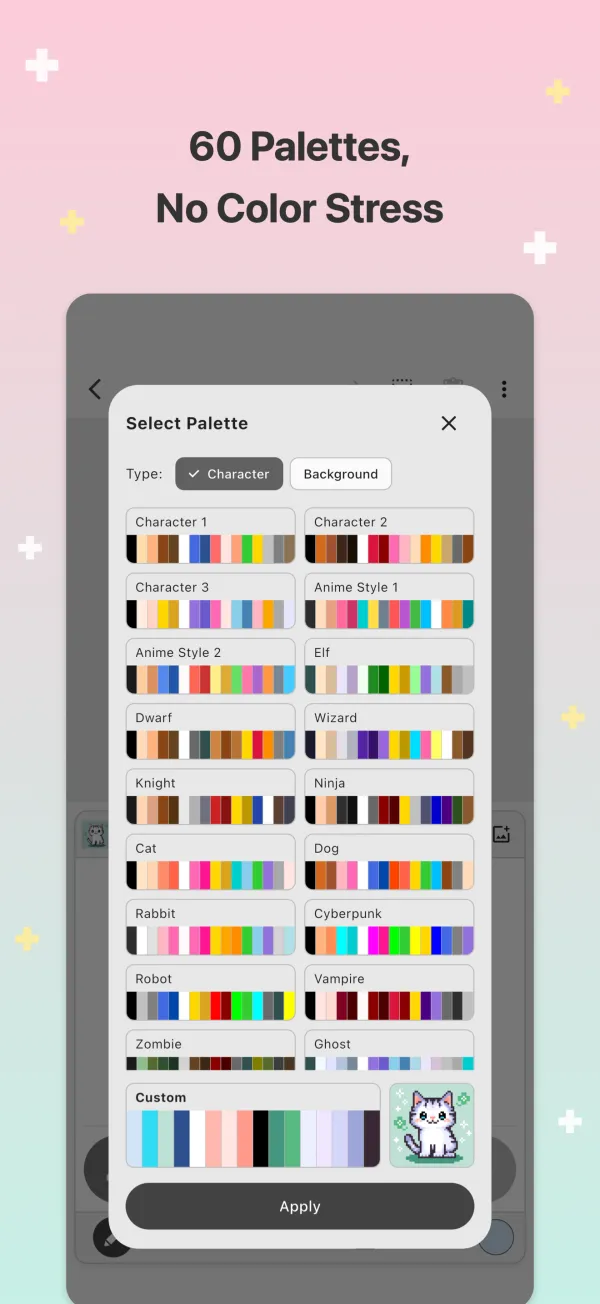
Anywhere from 1 to 256 colors, plus 60 ready-made presets.
-
Brushes & patterns
Pick a size and shape, and fill wide areas with 8 patterns like checks and stripes.
-
Canvas sizes
From an 8×8 icon to a 512×512 piece, with 50+ presets and custom sizes.
-
50 levels of undo
Try things freely. You can always go back.
-
Autosave
Your work is saved as you draw.
-
Backup & restore
Take all your artwork with you to a new phone.
-
Trash
Deleted something by mistake? Bring it back.
-
Hands-on tutorial
Learn the basics by actually drawing.
-
Batch export
Save several artworks at once.
Take a look inside.
On your phone.
On your Mac.
-
iPhone & Android
Draw one-handed, in spare moments, wherever you are.
-
iPad
On a wide screen, the canvas and the controls sit side by side.
-
Mac
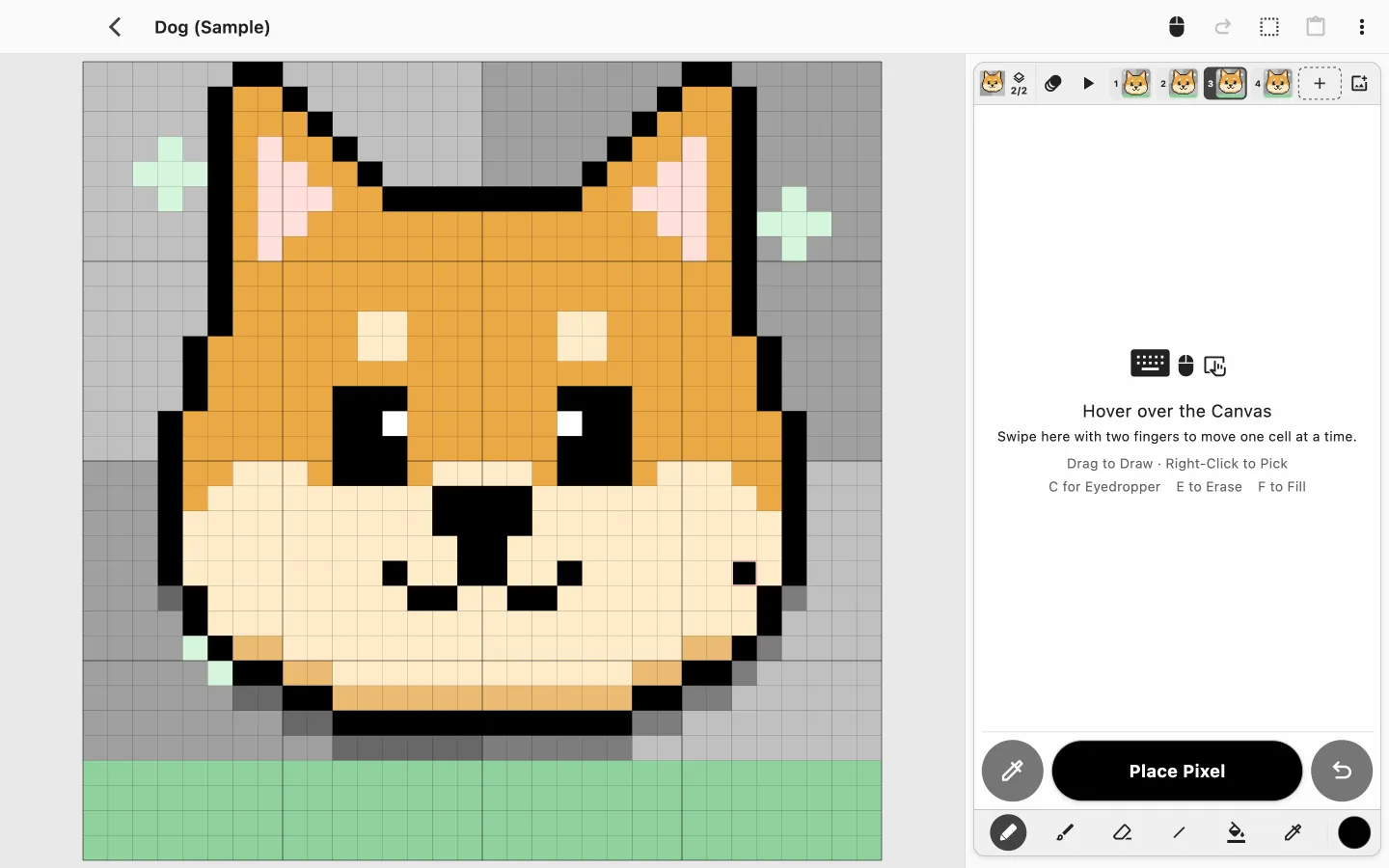
Draw directly with your mouse, or nudge one pixel at a time with a two-finger swipe. With a menu bar and keyboard shortcuts.
Every feature, free.
No locked features, no subscription, no account.
-
Free
$0Every feature is included. Ads appear in the artwork list and when you close the editor.
-
Remove Ads
One-timeBuy once and use Picotap without ads for good. On iPhone, iPad, and Android.
-
Tip Jar
OptionalEnjoying Picotap? Leave a tip to support development. It does not unlock anything.
The Mac version has no ads.
Questions?
Is Picotap free?
Yes. Every feature is free. If you would rather not see ads, you can buy Remove Ads once.
Do I need an account?
No. Your artwork is stored on your device and is never uploaded to our servers.
Which formats can I save?
PNG for still images, and GIF or APNG for animations. Backups use Picotap’s own .pico format.
What happens to my art when I switch phones?
Back up your artwork from Settings, then restore it on your new device.
Which devices are supported?
iPhone and iPad (iOS 16 or later), Android, and Mac (macOS 12 or later).

Place your first pixel.
Free to download for iPhone, iPad, Android, and Mac.